

ChatGPT Slash Commands & Visual Commands — the complete guide, prepared by Edmund Bogen
Type / in an empty ChatGPT message box. Select a command from the live menu, then add the subject, outcome, constraints, and reference material. This session walks through Edmund's complete guide to the ChatGPT slash commands — for controlling ChatGPT, organizing complex work, and producing visual explanations. Every command, its best moment to use it, an example command, and a fallback prompt when your menu doesn't show it.
The full September 30 live session — slash commands for infographics, floor plans, virtual staging and exploded views, built live on screen
While most agents are typing paragraph-long prompts into ChatGPT and hoping for the best, a command menu has been sitting one keystroke away the whole time. Type / in an empty message and the controls appear — planning modes, persistent goals, and eleven visual commands that turn a listing photo into a cutaway buyers actually understand.
You already own the only skill this takes: you can type one keystroke. This session hands you the complete map of what's behind it.
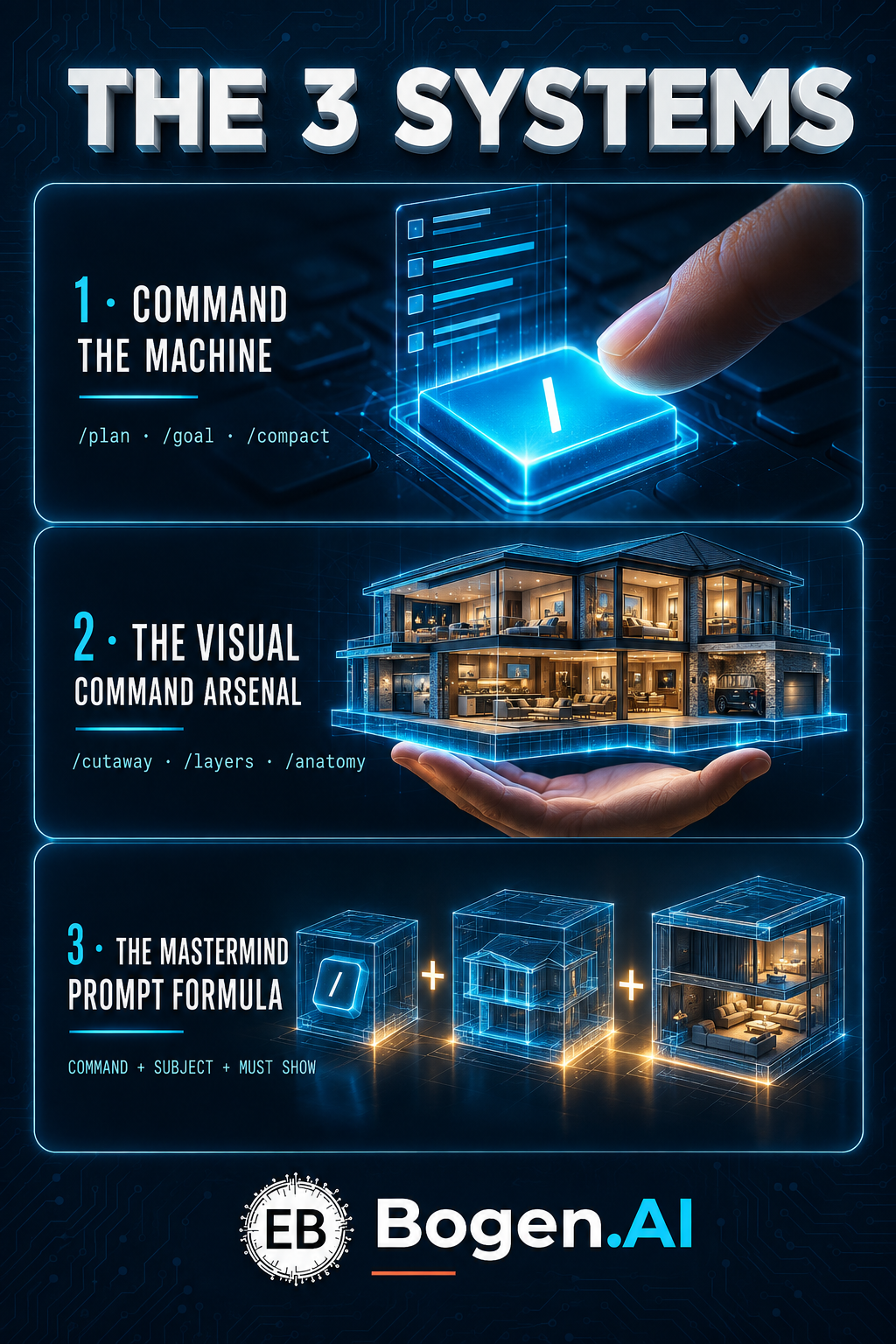
We will master 3 systems live, together:
1️⃣ Command the Machine — the built-in / menu demystified: /plan, /goal, /side, /fork, /compact and friends — what each one does and the exact moment a working realtor reaches for it
2️⃣ The Visual Command Arsenal — all 11 image commands led by /cutaway (open a two-story listing like a dollhouse) — each with a real-estate example and a fallback for menus that don't show it
3️⃣ The Mastermind Prompt Formula — COMMAND + SUBJECT + PURPOSE + MUST SHOW + STYLE + FORMAT + CONSTRAINTS — one recipe for every visual, plus the one-fix refinement rule
Watch the RecordingFrom the guide's opening page — the method behind every command
Type / in an empty ChatGPT message box. Select a command from the live menu, then add the subject, outcome, constraints, and reference material.
| Type | What It Controls |
|---|---|
| Built-in | Plans, goals, models, projects, execution environments, and development workflows. |
| Contextual | Appears only when a supporting feature, such as sharing, is available. |
| Custom prompt | Runs a reusable saved instruction by name. |
| Skill / visual | Invokes a specialized workflow, transformation, or interactive explanation. |
Commands vary by platform, account, installed skills, plugins, and feature access. If a visual command is unavailable, use the fallback prompt in the guide.
Independent educational guide: this guide is not official OpenAI documentation. Confirm the live command menu before relying on a command.
Built-in commands documented for ChatGPT desktop and Work. Availability can vary.
| Command | What It Does | Best Moment to Use It |
|---|---|---|
| /plan | Turns on planning mode for a multi-step assignment. | The result depends on choices, sequence, scope, or approval before execution. |
| /goal | Sets a persistent objective that ChatGPT can continue working toward. | The assignment is substantial, has a clear finish line, and benefits from continued progress. |
| /side | Starts a temporary side conversation without interrupting the main work. | You need a quick explanation, check, or alternative while preserving the primary task. |
| /fork | Copies a local conversation into a new chat or worktree. | You want to explore a different direction without disturbing the original thread. |
| /task | Starts a standalone conversation outside a project. | The request does not belong to an existing project. |
| /project | Chooses a project for new conversations. | You want future work to inherit a project's files, context, and instructions. |
| /compact | Compresses older context in a long conversation. | The thread is lengthy and you want to preserve essential context while freeing space. |
| /status | Shows chat information, context usage, and rate limits. | You need to check capacity, identifiers, or current session status. |
| Command | What It Does | Best Moment to Use It |
|---|---|---|
| /model | Chooses the model for the current conversation. | You need a different balance of speed, cost, or capability. |
| /reasoning | Chooses the reasoning effort for the current conversation. | The assignment requires a lighter quick response or deeper analysis. |
| /fast | Turns an available fast service tier on or off. | Speed matters and the feature is available on your account. |
| /personality | Selects a supported response personality. | You want to change the interaction style without rewriting instructions. |
| /memories | Controls whether the chat can use or create memories. | You want to review or change continuity settings. |
| /pet | Wakes or hides the desktop pet. | You want to display or tuck away the optional desktop companion. |
| Command | What It Does | Best Moment to Use It |
|---|---|---|
| /local | Runs the conversation in the selected local project. | The work should use files and tools on your computer. |
| /cloud | Runs the conversation in an available cloud environment. | You want remote execution rather than local execution. |
| /cloud-environment | Chooses the cloud environment for the conversation. | More than one cloud environment is configured. |
| /worktree | Runs work in a new Git worktree. | You want isolated code changes without affecting the current branch workspace. |
| /ide-context | Turns shared IDE context on or off. | You want ChatGPT to use, or stop using, information from your editor. |
| /init | Generates an AGENTS.md project-instructions scaffold. | You are setting up durable instructions for a coding project. |
| /review | Starts code review mode for changes, a commit, or a branch comparison. | You need a focused defect and risk review before accepting code. |
| /mcp | Opens MCP status for connected servers. | You are diagnosing or confirming external tools and data connections. |
| Command | What It Does | Best Moment to Use It |
|---|---|---|
| /approve | Approves one retry after a recent automatic-review denial. | A specific safe action was denied and the interface offers a review retry. |
| /feedback | Opens the feedback dialog and can include logs. | You want to report a product problem or share product feedback. |
These entries depend on enabled features, installed skills, or your saved prompt collection.
| Entry | What It Does | Best Moment to Use It |
|---|---|---|
| /share | Opens sharing controls where slash-command sharing is supported. | You want a reviewable snapshot or sharing link. |
| /prompts:name | Runs a saved custom prompt by name. | You repeat a structured instruction and want consistent execution. |
| $SkillName | Explicitly invokes an installed skill. | You want a specialized workflow such as presentations, PDFs, images, or connected data. |
Use this to choose the correct visual structure before writing the full prompt
| You Want To… | Command | You Want To… | Command |
|---|---|---|---|
| Separate a product into parts | /explodedview | See through an exterior | /xray |
| Label parts and functions | /anatomy | Create a technical drawing | /blueprint |
| Peel apart materials or levels | /layers | Show consistent viewing angles | /360view |
| Magnify tiny structures | /microscopic | Reveal an interior in place | /cutaway |
| Make approachable study notes | /handwritten | Group ideas for planning | /make-sticky-notes |
| Build an interactive explanation | /visualize | Combine methods | Run two commands in sequence |
| Command | Primary Use |
|---|---|
| /explodedview | Separates a product or object into major components while preserving their spatial relationship. |
| /xray | Makes the exterior transparent or translucent so internal systems remain visible inside the original silhouette. |
| /anatomy | Creates a structured, labeled breakdown of the parts or systems that make a subject work. |
| /blueprint | Converts a subject into a technical blueprint-style drawing with measured, engineered visual language. |
| /layers | Peels a subject into functional or material layers to show what sits above, below, or within each level. |
| /360view | Presents a subject from multiple consistent angles as if rotating around it. |
| /microscopic | Magnifies a material, surface, organism, or mechanism into a microscopic or extreme macro visualization. |
| /cutaway | Removes a controlled section of an exterior so the interior can be seen in place. |
| /handwritten | Reformats an explanation as informal handwritten study notes or a whiteboard-style learning page. |
| /make-sticky-notes | Organizes ideas into color-coded sticky-note clusters for quick scanning and planning. |
| /visualize | Creates an interactive or highly visual explanation, comparison, simulation, map, chart, or conceptual model. |
Every field from the guide: what it does, best used for, what to provide, the example command, the fallback, and the quality check
Refine the result: Make one targeted correction at a time. Preserve the elements that already work, identify the exact defect, and regenerate only after stating what must remain unchanged.
Separates a product or object into major components while preserving their spatial relationship.
Best used for: Mechanical products, appliances, furniture, vehicles, tools, and product education.
What to provide: Attach one clear image. State the object, desired realism, viewing angle, background, and whether labels are permitted.
Example Command/explodedview Create a clean technical exploded view of this espresso machine. Preserve its exterior design, separate only major components, use a white studio background, and add concise labels.
If the command is unavailable: "Create a technical exploded-view illustration of the attached object, separating its major components while preserving their correct order and orientation."
Quality check: Are all major parts visible? Is their assembly order understandable? Did the design remain faithful to the reference?
Makes the exterior transparent or translucent so internal systems remain visible inside the original silhouette.
Best used for: Vehicles, electronics, appliances, buildings, anatomy-style product education, and hidden mechanisms.
What to provide: Attach a side or three-quarter image. Identify which internal systems matter and how transparent the shell should be.
Example Command/xray Show this luxury SUV with a translucent exterior, revealing the battery, motors, suspension, passenger cabin, and major electronics. Keep the result photorealistic and accurately aligned.
If the command is unavailable: "Create an X-ray-style cut-through of the attached subject with a translucent exterior and clearly visible internal systems."
Quality check: Do the internals sit in plausible positions? Is the outer silhouette still readable? Is the image educational rather than visually cluttered?
Creates a structured, labeled breakdown of the parts or systems that make a subject work.
Best used for: Machines, business processes, buildings, devices, biological subjects, and conceptual systems.
What to provide: Name the audience and learning level. Specify the number of labels and whether accuracy or simplicity has priority.
Example Command/anatomy Create a labeled anatomy of a CPAP machine for a first-time user. Show the motor, filter, humidifier, tubing, mask, sensors, and airflow path in simple language.
If the command is unavailable: "Create a clear labeled anatomy diagram of the subject, showing its principal components and explaining each component's function."
Quality check: Are the labels readable? Are functions correct? Can a beginner understand the whole system in under one minute?
Converts a subject into a technical blueprint-style drawing with measured, engineered visual language.
Best used for: Architecture, vehicles, products, stage designs, inventions, room concepts, and cinematic props.
What to provide: Provide the reference image and desired views. State whether dimensions are real, approximate, or purely illustrative.
Example Command/blueprint Convert this blender into a navy-and-white engineering blueprint with front, side, and top views. Use clean callouts and mark all dimensions as illustrative.
If the command is unavailable: "Create a technical blueprint-style illustration of the attached subject with orthographic views, fine construction lines, and concise callouts."
Quality check: Are the views consistent? Are invented measurements labeled illustrative? Is the technical style clean and legible?
Peels a subject into functional or material layers to show what sits above, below, or within each level.
Best used for: Walls, roofs, mattresses, electronics, clothing, landscapes, software stacks, and layered explanations.
What to provide: Specify the layer order, whether the layers should float apart, and whether material labels are needed.
Example Command/layers Show the layers of a hurricane-resistant South Florida roof from exterior tile to interior ceiling. Separate each layer vertically and label its function.
If the command is unavailable: "Create a layered cutaway of the subject, separating each major material or functional layer in the correct order."
Quality check: Is the order correct? Are layer boundaries distinct? Does each label explain a function rather than merely naming a material?
Presents a subject from multiple consistent angles as if rotating around it.
Best used for: Products, characters, vehicles, furniture, rooms, and reference sheets for video generation.
What to provide: Use a clean reference with an unobstructed subject. Specify the number of angles and whether lighting/background must remain fixed.
Example Command/360view Create an eight-angle reference sheet of this AI character. Preserve its face, proportions, logo placement, materials, lighting, and scale across every view.
If the command is unavailable: "Create a consistent multi-angle turnaround sheet of the attached subject, keeping identity, proportions, materials, and lighting unchanged."
Quality check: Does identity remain consistent? Are front, profile, rear, and three-quarter views included? Do details drift between angles?
Magnifies a material, surface, organism, or mechanism into a microscopic or extreme macro visualization.
Best used for: Science education, texture studies, food, fabrics, filtration, biological concepts, and material failure.
What to provide: State the magnification style, realism level, scale cue, and whether the image is scientifically literal or illustrative.
Example Command/microscopic Show how a HEPA filter traps dust, pollen, and pet dander at extreme magnification. Use realistic fibers and add a simple scale indicator.
If the command is unavailable: "Create a scientifically grounded microscopic-style visualization of the subject at extreme magnification with a clear scale cue."
Quality check: Is the image presented as literal or illustrative? Is scale communicated? Are particles and structures plausible?
Removes a controlled section of an exterior so the interior can be seen in place.
Best used for: Buildings, rooms, vehicles, appliances, engines, plumbing, and equipment demonstrations.
What to provide: Specify which exterior section should be removed and which interior components must remain visible.
Example Command/cutaway Create a clean cutaway of this two-story home, removing the front wall to show the foyer, kitchen, living room, primary suite, stairs, and second-floor bedrooms.
If the command is unavailable: "Create a cutaway illustration of the attached subject by removing part of the exterior while keeping the interior components in their correct positions."
Quality check: Is the removed section logical? Is the interior spatially coherent? Can the viewer relate inside components to the outside shell?
Reformats an explanation as informal handwritten study notes or a whiteboard-style learning page.
Best used for: Study guides, summaries, teaching posts, meeting recaps, and approachable educational content.
What to provide: Provide the exact topic and key points. Specify notebook, whiteboard, or sketch-note style and request high legibility.
Example Command/handwritten Turn this explanation of buyer representation agreements into one page of clean handwritten notes with arrows, boxes, and five key takeaways.
If the command is unavailable: "Convert this material into a highly legible handwritten study-note page with short headings, arrows, boxes, and concise takeaways."
Quality check: Can every word be read? Is the hierarchy obvious? Were important qualifications preserved rather than oversimplified?
Organizes ideas into color-coded sticky-note clusters for quick scanning and planning.
Best used for: Brainstorms, lesson maps, sales-call preparation, project planning, prioritization, and workshop recaps.
What to provide: Provide the ideas, desired categories, priority system, and maximum number of notes.
Example Command/make-sticky-notes Organize my weekly priorities into Family, Real Estate, Mastermind, and Administrative. Limit the board to 12 notes and mark the three must-do items.
If the command is unavailable: "Create a clean visual sticky-note board from this material, grouped by category and clearly marking the highest-priority actions."
Quality check: Are categories mutually clear? Is the board limited enough to scan? Are priority and ownership visible?
Creates an interactive or highly visual explanation, comparison, simulation, map, chart, or conceptual model.
Best used for: Anything easier to understand by seeing relationships, sequence, tradeoffs, or changing inputs.
What to provide: State the decision or learning objective, audience, inputs, and what the viewer should be able to change or compare.
Example Command/visualize Build an interactive beginner explanation of Python lists. Let me add, remove, search, and reorder sample contacts while showing the corresponding Python code.
If the command is unavailable: "Create an interactive visual explanation of this topic that lets the viewer explore the most important relationships or changing inputs."
Quality check: Does interaction teach something material? Are inputs and outputs obvious? Is the visualization simpler than the prose it replaces?
One structure for every visual request
COMMAND + SUBJECT + PURPOSE + MUST SHOW + STYLE + FORMAT + CONSTRAINTS
/cutaway + attached CPAP machine + teach a new patient + motor, filter, humidifier, tubing, airflow + clean cartoon infographic + 16:9 + no more than seven labels
Check accuracy, identity, proportions, labels, legibility, disclosure, image rights, and recipient availability.
Refine the result: make one targeted correction at a time. Preserve the elements that already work, identify the exact defect, and regenerate only after stating what must remain unchanged.
ChatGPT Slash Commands — The Complete Guide · Prepared by Edmund Bogen
One PDF, everything on this page: how to use slash commands and the four-step method, all 24 built-in commands with what each does and its best moment to use it, the contextual commands, custom prompts, and skills, the visual-command quick reference, a full page for each of the 11 visual commands — description, best used for, what to provide, example command, fallback, quality check, and worksheet spaces — the Mastermind prompt formula with its worksheet, and the sources, availability, and responsible-use notes. 25 pages, 16:9.
From the guide's closing page
This is an independently prepared educational guide, not official OpenAI documentation. Commands and feature access can change by account and platform.
Before using a command: type / in a new ChatGPT message and confirm that the command appears. If it does not, use the fallback prompt from this guide instead.
Check labels, mechanisms, dimensions, identity, and factual claims before distributing generated visuals.
| Check | What It Requires |
|---|---|
| High-stakes limit | Generated diagrams must not be treated as engineering, medical, architectural, financial, or legal proof without qualified review. |
| Distribution check | Confirm image rights, remove confidential information, identify illustrative content, and make sure every word remains readable at normal viewing size. |